
AI Files: Your AI Agents’ Reports & Presentations in One Place
Everything your agents produce, in one place.
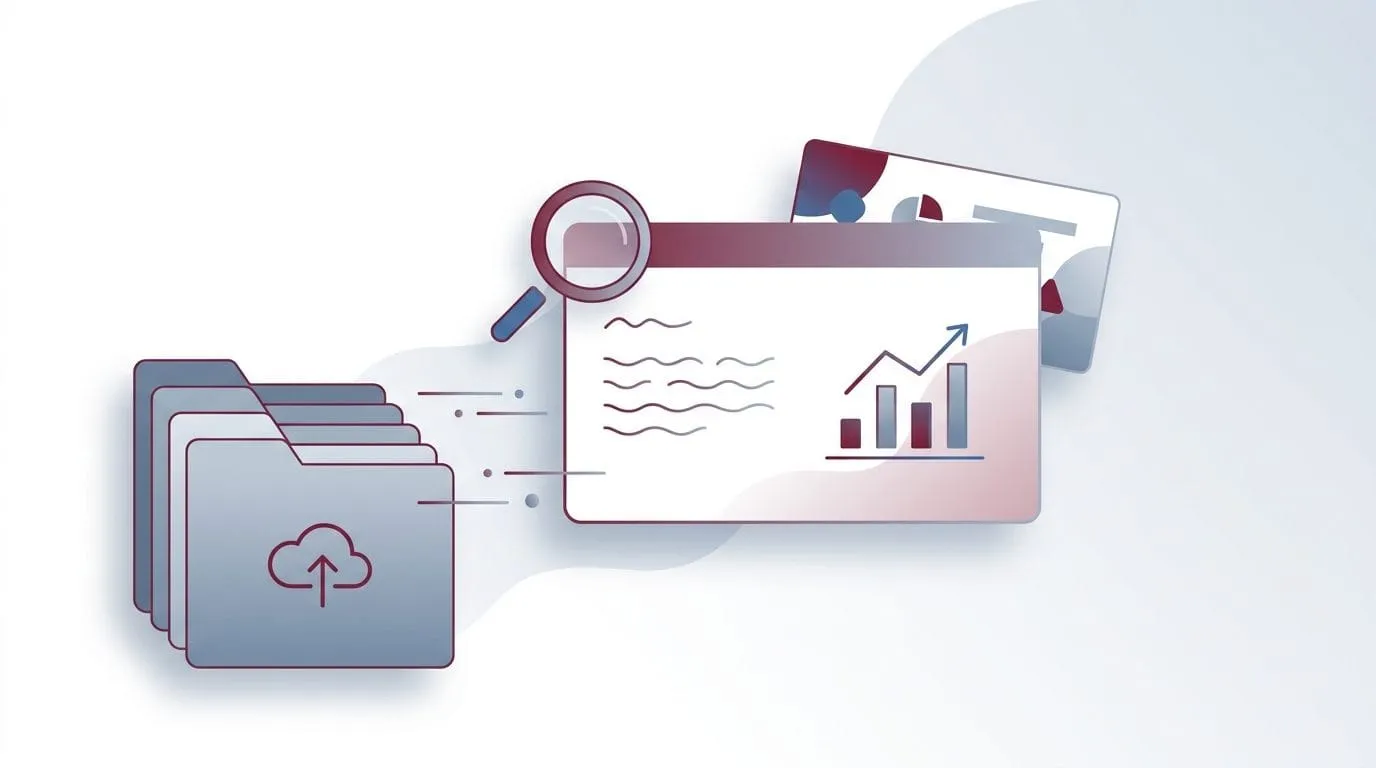
Results that vanish into a chat history are not results. Every report, deck and note your virtual employees produce lands in a searchable library, properly formatted, playable as full-screen slides, with room for your own notes beside it.
Who it’s for
Who this is built for

Product demo
Inside the product
| Name | Source | |
|---|---|---|
| 📊 Performance report W30.md | Analytics agent | new |
| 📈 Account audit July.md | Ads agent | |
| 📝 Content plan Q3.md | SEO agent |
Simulated preview with example data, no real accounts or server calls.
Business value
What you get
How it works
How it works
- Open Files, everything your agents have saved is already there.
- Browse the folder tree or filter by type (reports, presentations, notes).
- Click a file to read it; presentations can be played full-screen.
- Use the search box to search files and generated images at once.
- Create your own notes with 'New note', they live alongside the agent files.
FAQ
Frequently asked questions
Where do the files come from?
Your Virtual Marketer agents save their work results, reports, presentations, notes, here automatically. You can also create and edit your own notes.
Can I download files?
Yes, every file can be downloaded with one click. You can also rename files, move them between folders and delete what you no longer need.
What does the search cover?
One search box covers your file library and the product images generated with VM Product Staging, results are shown side by side.